How to Use EXM Tweaks
This article walks you through the core features of EXM Tweaks so you can get the most out of the application — from your first launch all the way through to advanced system tuning.
The Main Dashboard
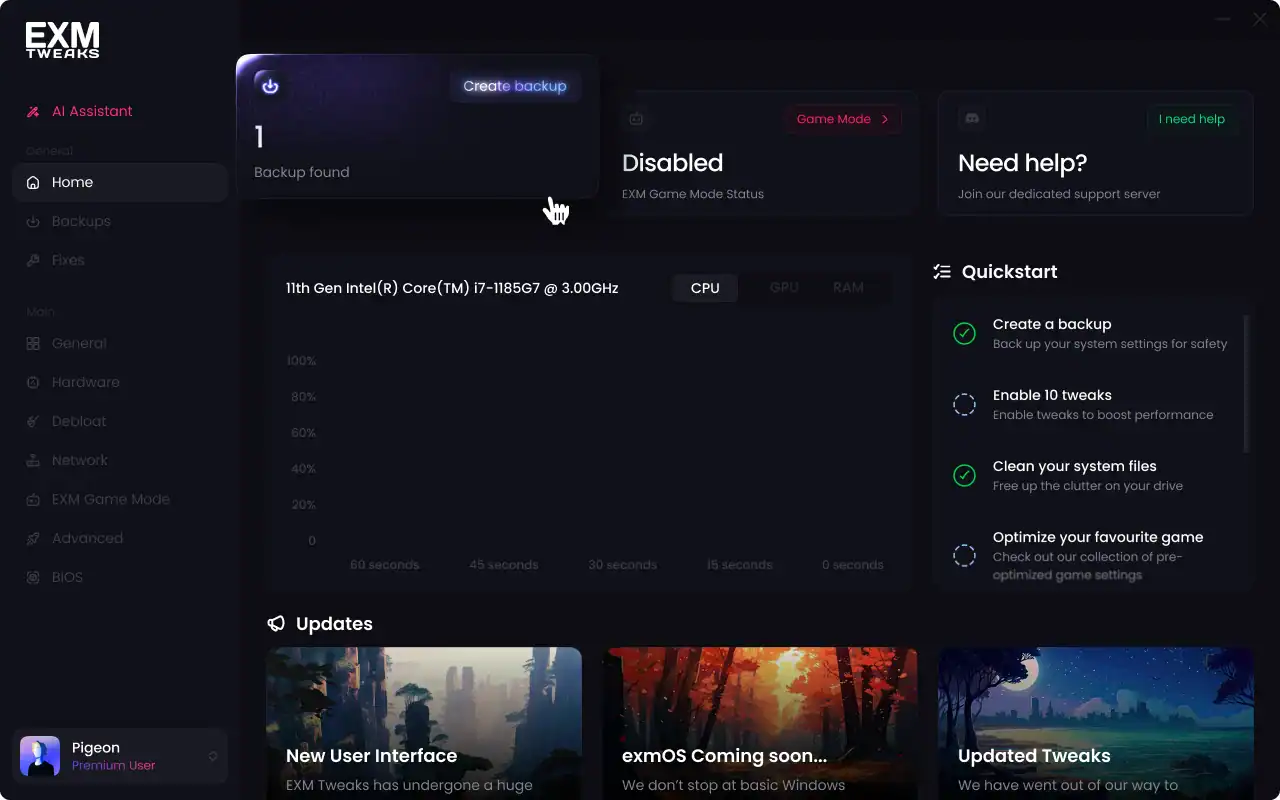
When you open EXM Tweaks, you'll land on the main dashboard — your home base for everything the app has to offer.
Here you'll find:
System Temperatures — Live readouts of your CPU and GPU temps so you can monitor your system health at a glance.
Onboarding Checklist — New to EXM? The checklist walks you through the recommended first steps to get your system optimized quickly and safely. Work through each item to make sure you're set up correctly from the start.
Recent EXM News — Stay up to date with the latest EXM Tweaks updates, feature releases, and community announcements directly from the dashboard.
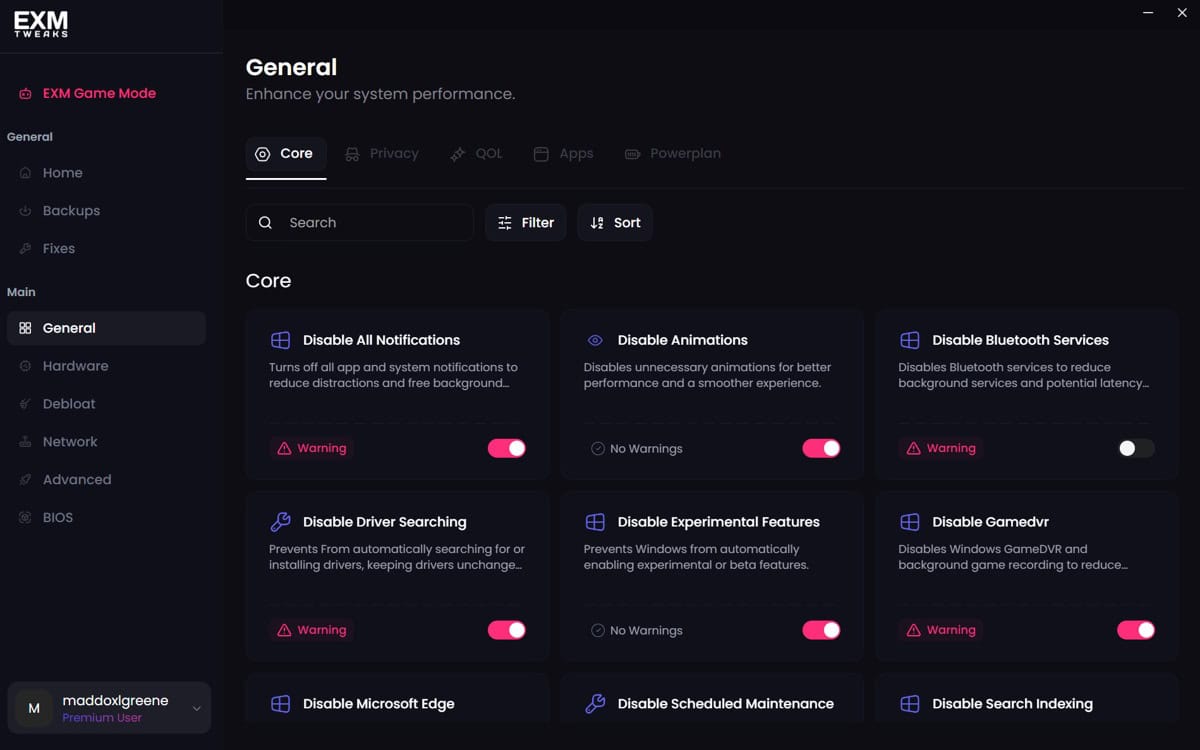
General Optimizations
The General Optimizations category covers the foundational tweaks that benefit most users right out of the gate. These are safe, broadly applicable adjustments designed to improve system responsiveness and reduce unnecessary background overhead. This is the best place to start if you're new to tweaking.
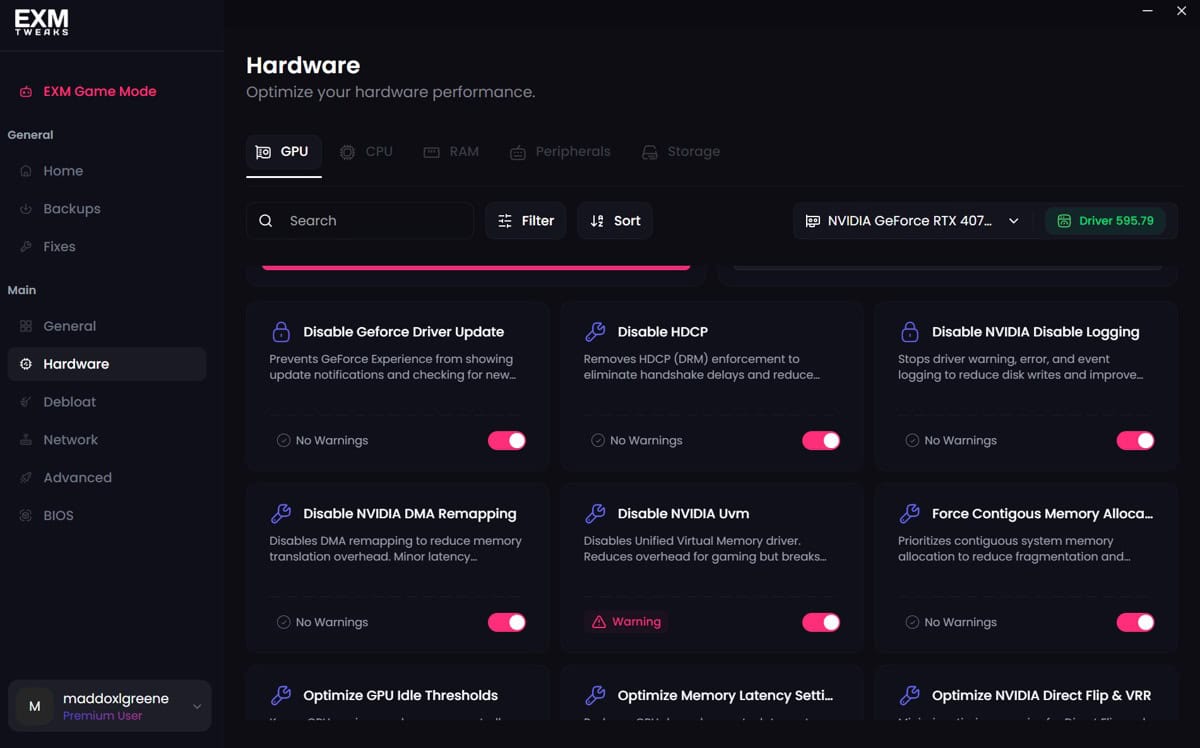
Hardware Optimizations
The Hardware Optimizations category lets you get more out of your physical components. This section is tailored to your specific hardware and covers adjustments related to your CPU, GPU, RAM, and storage. These tweaks are designed to improve performance headroom and reduce latency at the hardware level.
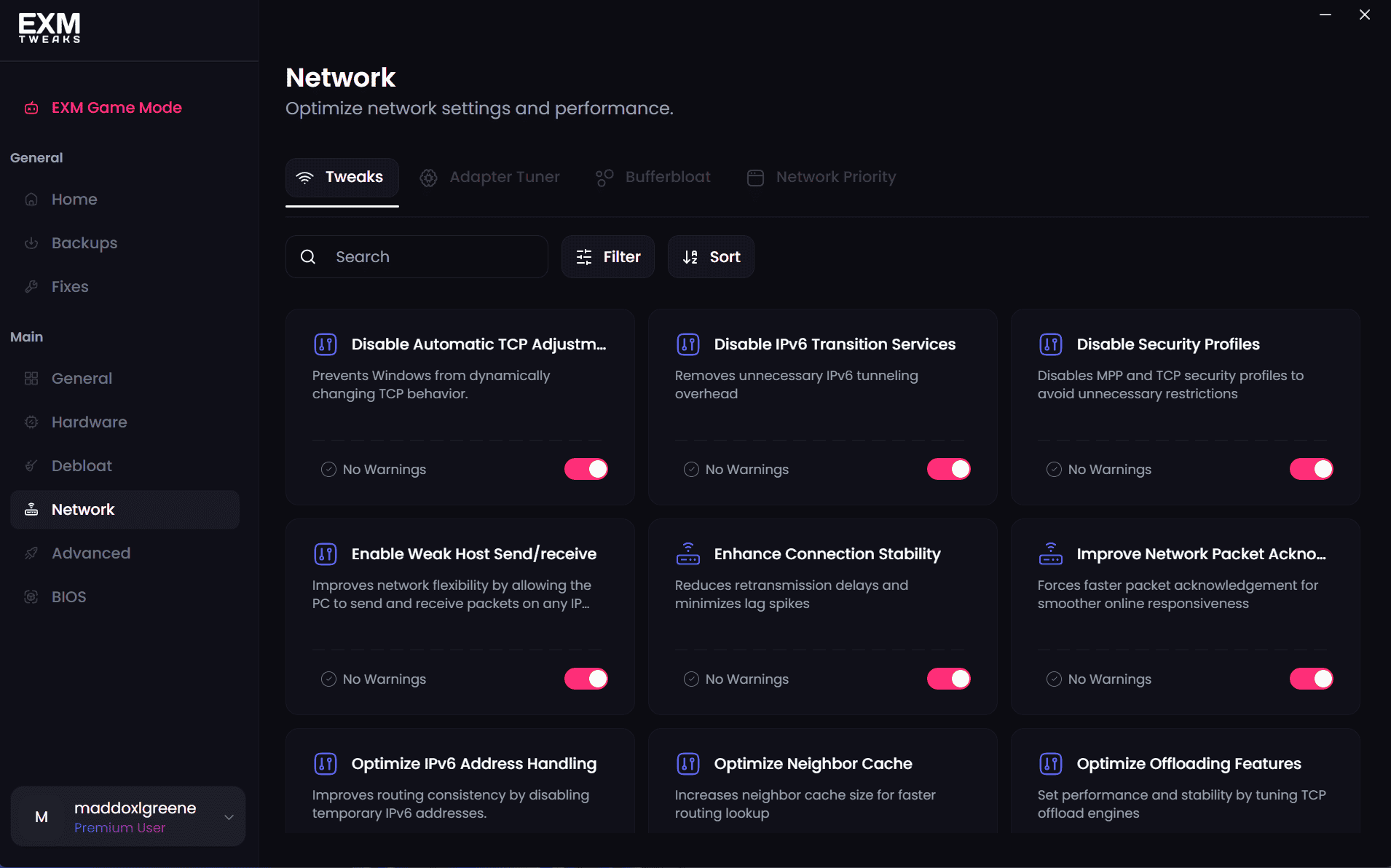
Network Optimizations
The Network Optimizations category focuses on reducing latency and improving connection stability — particularly useful for gaming and real-time applications. Tweaks here target your network adapter settings, DNS configuration, and TCP/IP stack to help you get the most out of your internet connection.
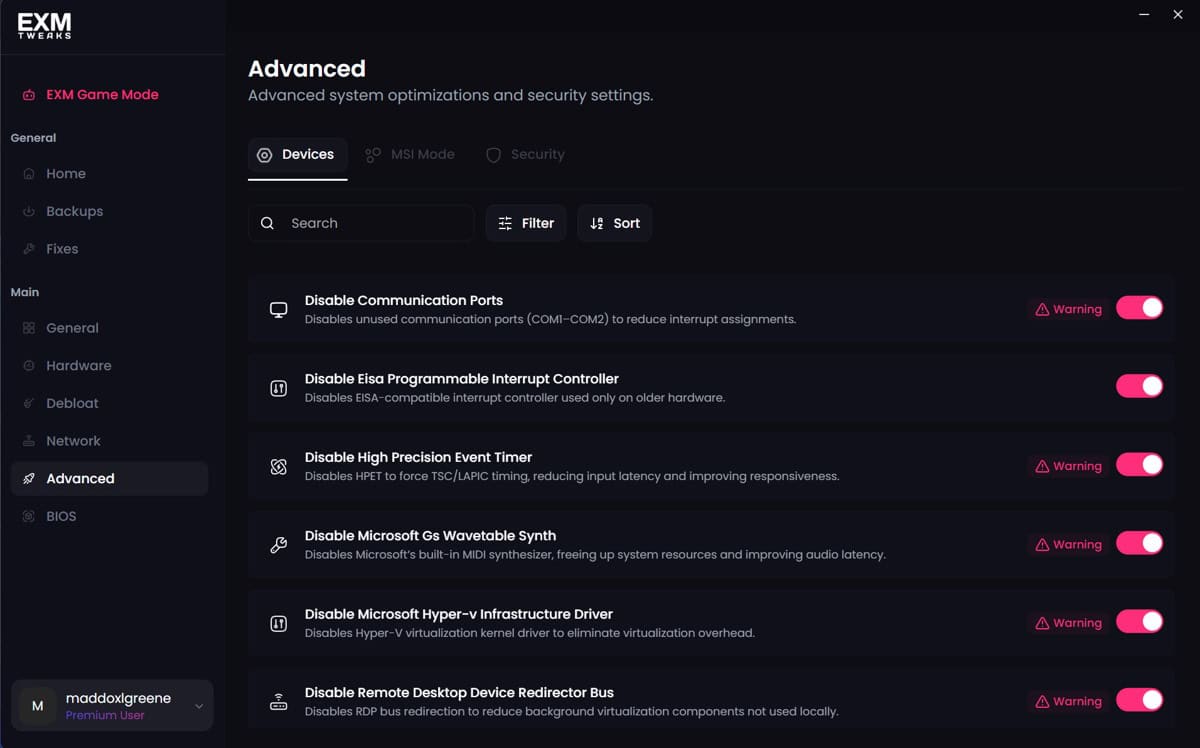
Advanced
The Advanced section is intended for experienced users who want deeper control over their system. These tweaks go beyond the general recommendations and allow for more granular configuration. While powerful, we recommend having a solid understanding of what each setting does before applying anything here.
⚠️ Always create a backup before using the Advanced section. See our EXM Backup Guide and Windows Restore Point Guide for instructions.
Debloat
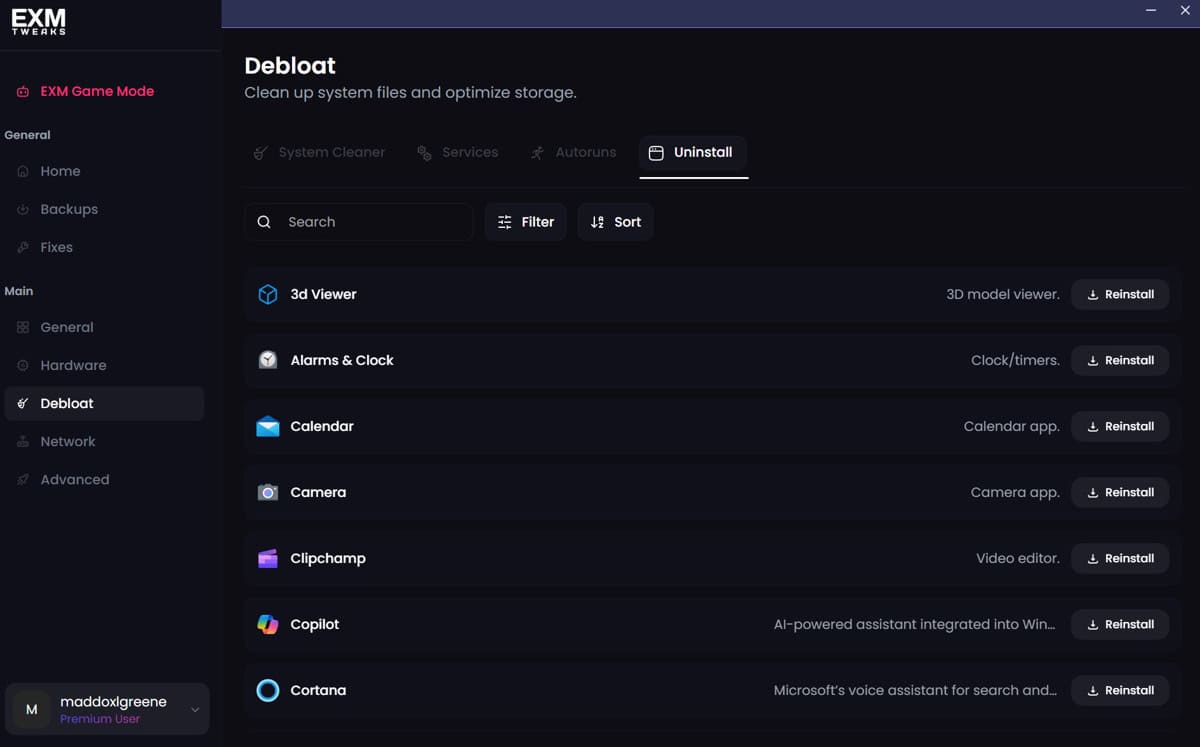
The Debloat page gives you control over the unnecessary apps, services, and background processes that Windows ships with by default. Many of these run silently in the background, consuming system resources without providing any real benefit for gaming or performance-focused use cases. Removing or disabling them frees up CPU, RAM, and disk activity for the things that actually matter.
⚠️ Review each item before removing it. While EXM's debloat options are curated for safety, some components may be relevant depending on your specific setup. When in doubt, create a backup first — see our EXM Backup Guide for instructions.
Windows Fixes
The Windows Fixes page is a collection of individually selectable options that either restore default Windows functionality or adjust specific system behaviors. Unlike the optimization categories, nothing here is applied automatically — every fix is a deliberate, one-click action that you choose to apply on its own terms.
This makes it ideal for two scenarios:
Something broke — If a previous tweak or Windows update has caused an issue, Windows Fixes gives you targeted options to restore specific functionality without having to roll back your entire system.
Fine-tuning behavior — Some options let you adjust how Windows behaves in specific situations, giving you control over things that aren't exposed through standard Windows settings.
Browse the available options, read what each one does, and apply only what's relevant to your situation.
⚠️ As always, we recommend creating a backup before making changes. See our EXM Backup Guide for instructions.
Need Help?
If you have any questions or run into anything unexpected, our support team is ready to help at support@exmtweaks.com.